

SHOPIFY GIFT GUIDE
Get Your Shopify Store Ready for Valentine's DayWrapping, love notes and delivery on February 14
Valentine's Day has one date that matters: February 14. Shoppers want the gift to arrive on the day, wrapped, with a note. Here's how to make that easy in your Shopify store.
What Valentine's shoppers ask for
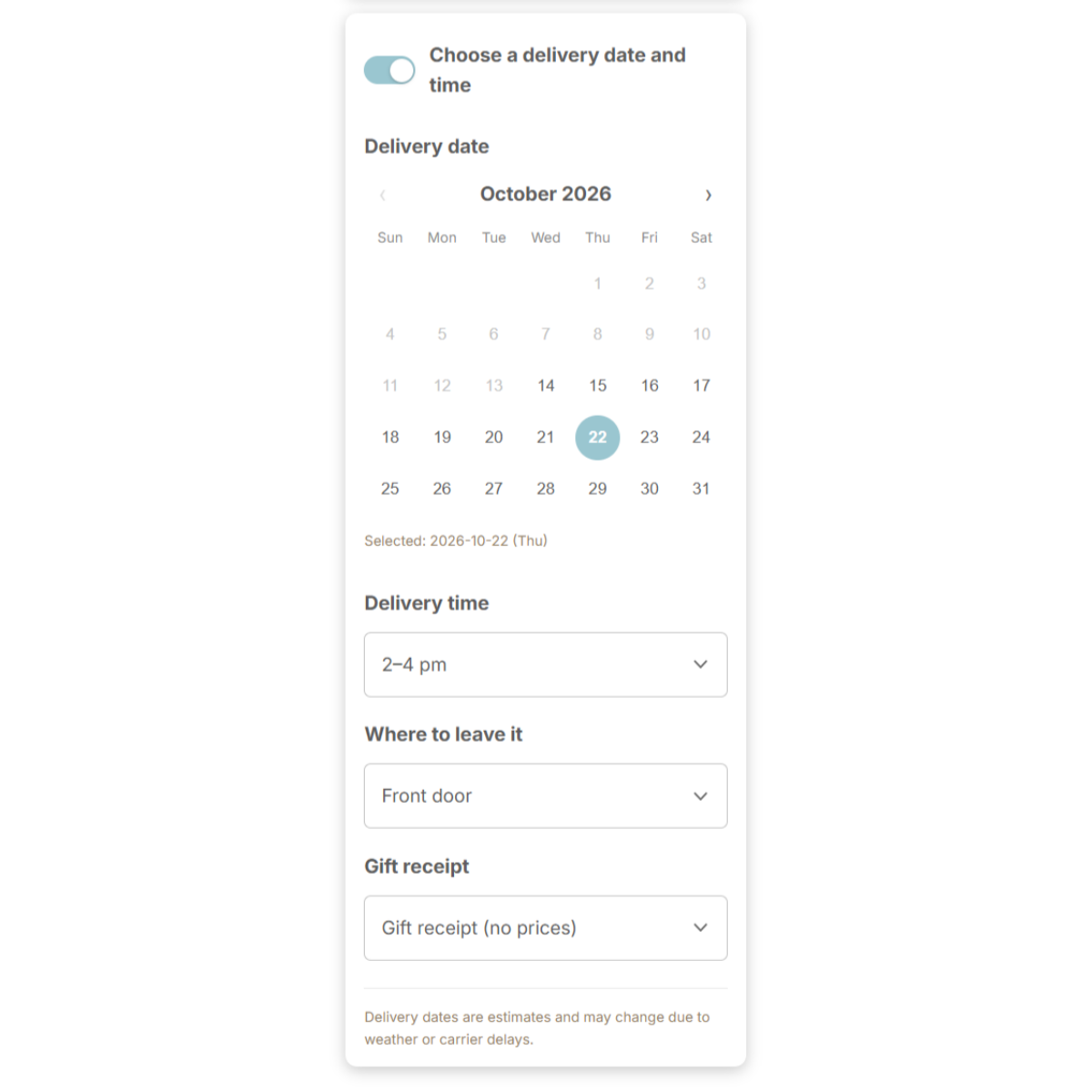
- Delivery on the 14th — or the day before, if it falls on a weekend you don't deliver.
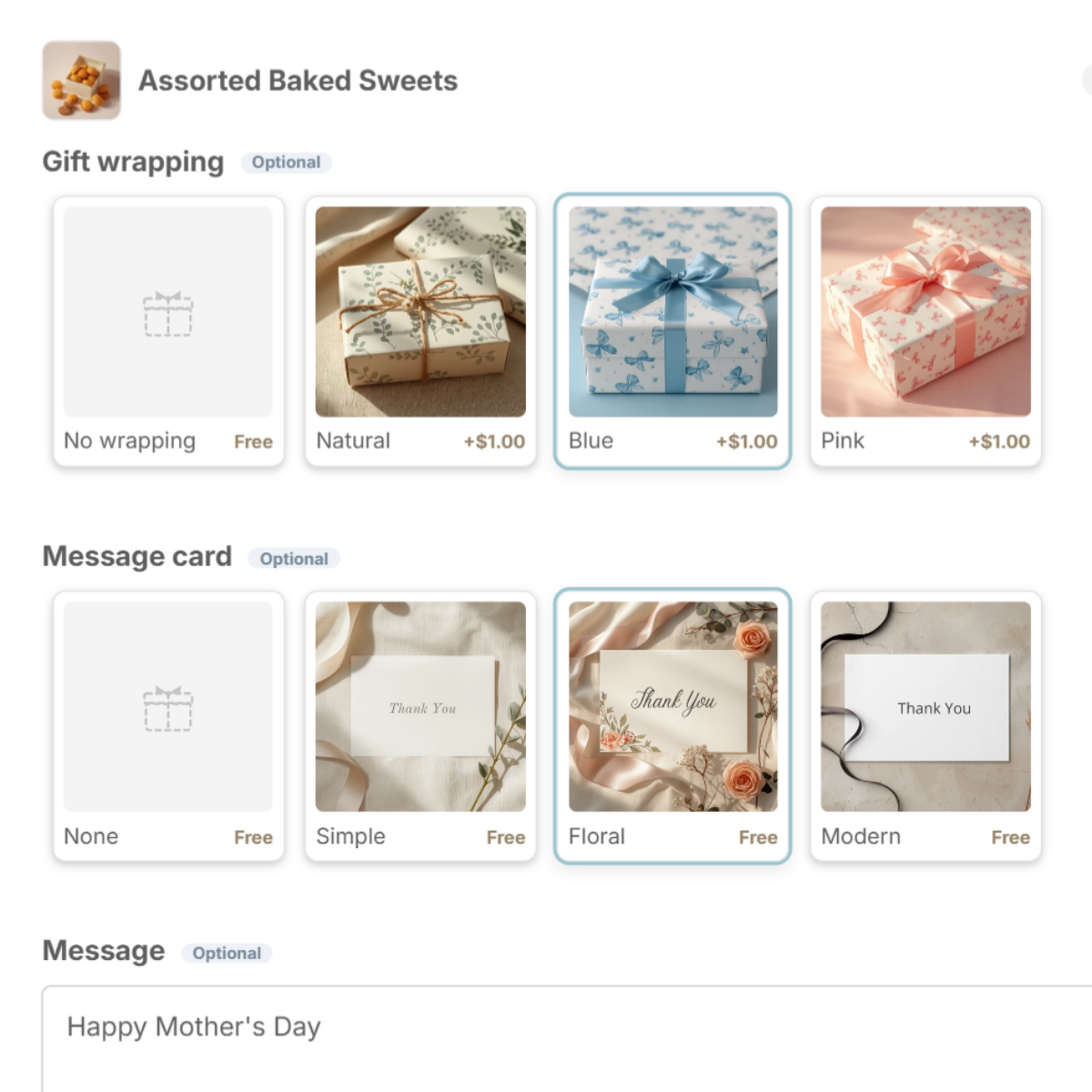
- Romantic wrapping — red and pink paper, ribbons, a gift box.
- A personal note — a message card with room for a few lines.
- No prices — a gift receipt that leaves the price out.
Wrapping and message cards
Add a Valentine's wrap and card to your choices for the season, then remove them in March. Shoppers pick from photos, and the message field sits right below.
Make "arrives on the 14th" possible
- Set your earliest date and cutoff so late orders can't pick a date you can't meet.
- Add a notice under the delivery fields: "Order by February 10 for Valentine's delivery".
- Offer a time slot so the gift arrives when someone is home.
Set it up with Gift Style
- Install and turn on the app — add Gift Style from the Shopify App Store, then switch it on under App embeds in your theme. (Guide)
- Add the block to your cart page — in the theme editor, open the Cart page and add the Gift options block. (Guide)
- Add a preset — press Wrapping set and Message card set and the choices drop in, complete with images. Swap in photos of your own wrapping and cards when you are ready. (Guide)
- Pick the products and save — choose which products the options apply to. (Guide)
- Turn on delivery dates (optional) — open Delivery in the app and switch on the date calendar, time slots, where to leave it and gift receipt. (Guide)
Every message is saved on the order. On Pro, export them to CSV and bulk-create printed cards in Canva.

See Gift Style on the Shopify App Store
Free to install. Try wrapping, message cards and delivery dates on the Free plan.