

How to Offer Gift Wrapping and Gift Messages on ShopifyLet shoppers pick from photos, in the cart
People buying a gift want to know two things: what will it look like, and can I add a note? Shopify doesn't include a gift wrapping or gift message option out of the box. This guide shows how to let shoppers choose wrapping, gift boxes and message cards in the cart, and write their message.
Show photos, not just names
"Wrapping: Blue" doesn't tell anyone much. When shoppers can see the paper, the box or the card, they decide faster and are happier with what arrives. You get fewer "this isn't what I expected" emails, too.
Why the cart, not the product page?
Gift decisions are often made once everything is in the cart: one box for the whole order, or a different wrap for each item. Putting the options in the cart means one setup covers all your products, with no product templates to edit.
Set it up with Gift Style
- Install and turn on the app — add Gift Style from the Shopify App Store, then switch it on under App embeds in your theme. (Guide)
- Add the block to your cart page — in the theme editor, open the Cart page and add the Gift options block. (Guide)
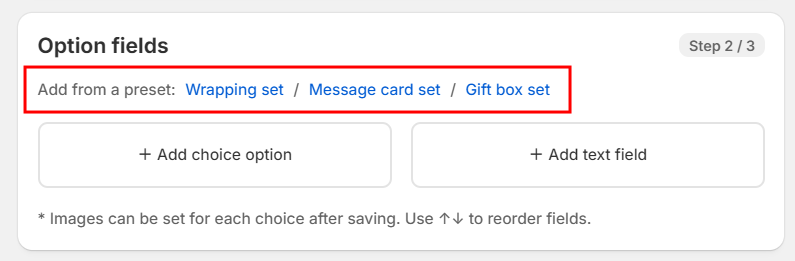
- Add a preset — press Wrapping set, Message card set or Gift box set and the choices drop in, complete with images. Swap in photos of your own wrapping and cards when you are ready. (Guide)
- Pick the products and save — choose which products the options apply to. (Guide)
- Turn on delivery dates (optional) — open Delivery in the app and switch on the date calendar, time slots, where to leave it and gift receipt. (Guide)
What shoppers see
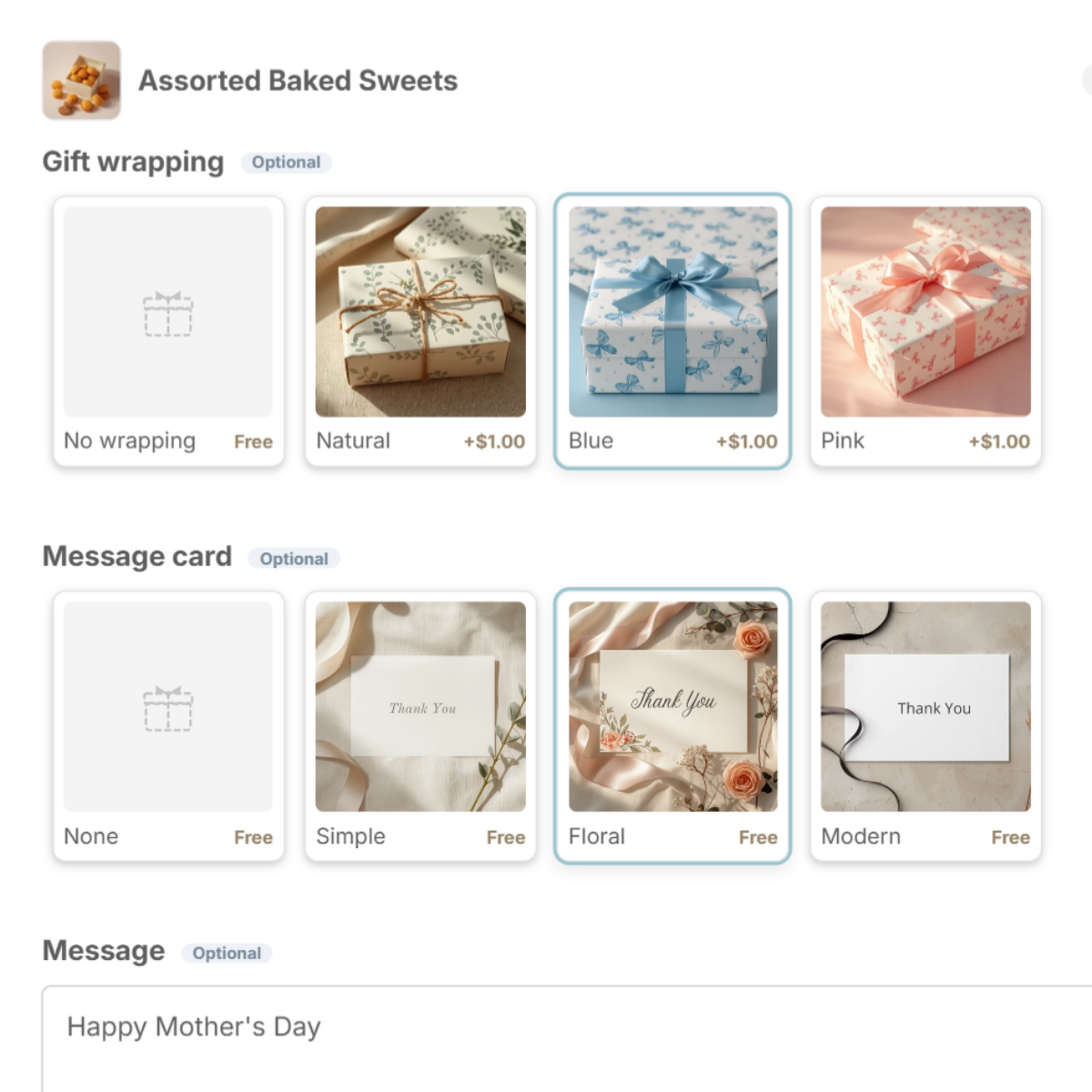
Wrapping, boxes and cards appear as image cards. Pick a message card and a message field appears below it (up to 200 characters by default). On phones, shoppers swipe through the cards.
Make it your own
- Add or rename choices — ribbon colors, seasonal paper, anything you offer.
- Add text fields — such as the sender's name, with minimum and maximum length.
- Use a dropdown — when you have many choices, show a dropdown instead of image cards.
- Charge for it — put a price on a choice and it is added to the cart total (Standard and above). See how to charge for gift wrapping.
- Per product or whole order — wrap each item separately, or treat the order as one gift. (Guide)
After the order comes in
Choices and messages are saved on the order and in the order note, grouped by product. Gift orders get a "Gift Style" tag automatically, so you can filter them in seconds. On Pro, export messages to CSV and bulk-create cards in Canva. (Guide)

See Gift Style on the Shopify App Store
Free to install. Try wrapping and message cards on the Free plan.