

SHOPIFY GIFT GUIDE
Father's Day Gift Tips for Shopify StoresGift boxes, short notes and last-minute orders
Father's Day (the third Sunday in June in the US, UK, Canada, Japan and many other countries) has a reputation: people order late. The week before is busy, and "will it arrive in time?" is the question you'll hear most. Here's how to get ready in your Shopify store.
What makes Father's Day different
- Last-minute orders — a calendar that only shows dates you can meet lets shoppers check for themselves.
- Simple, smart packaging — navy, grey or kraft gift boxes are popular choices.
- Short messages — a card with a line or two is enough.
Gift boxes and message cards
Show your boxes and cards as photos in the cart. To charge for a premium box, enter a price on that choice and it's added to the cart total (Standard and above). See how to charge for gift wrapping.
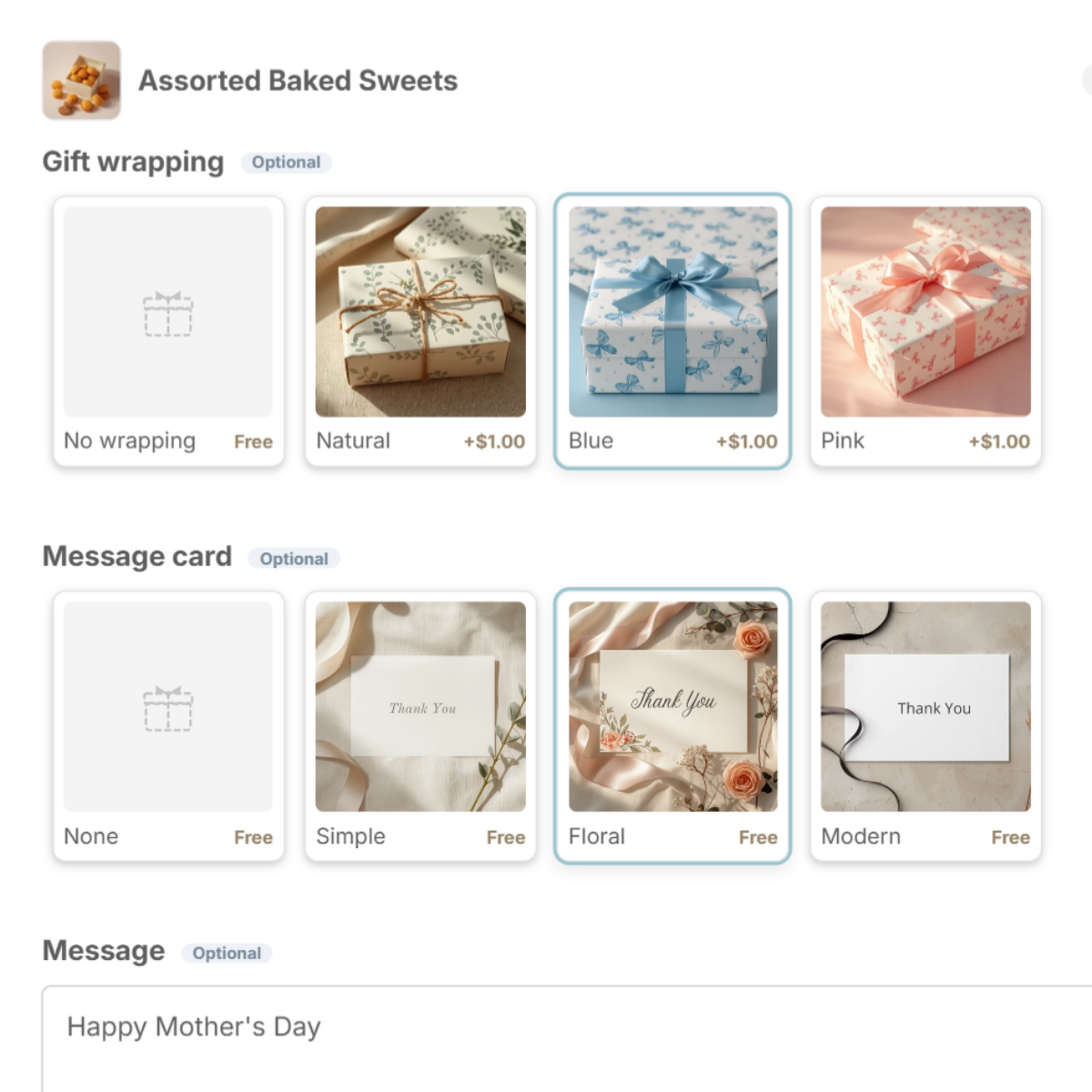
Delivery rules for the rush
- Same-day cutoff — "orders before 2 pm ship today" moves the earliest date automatically.
- Earliest date — set your packing time so dates you can't make are greyed out.
- A notice — show "Order by June 15 for Father's Day delivery" under the delivery fields.
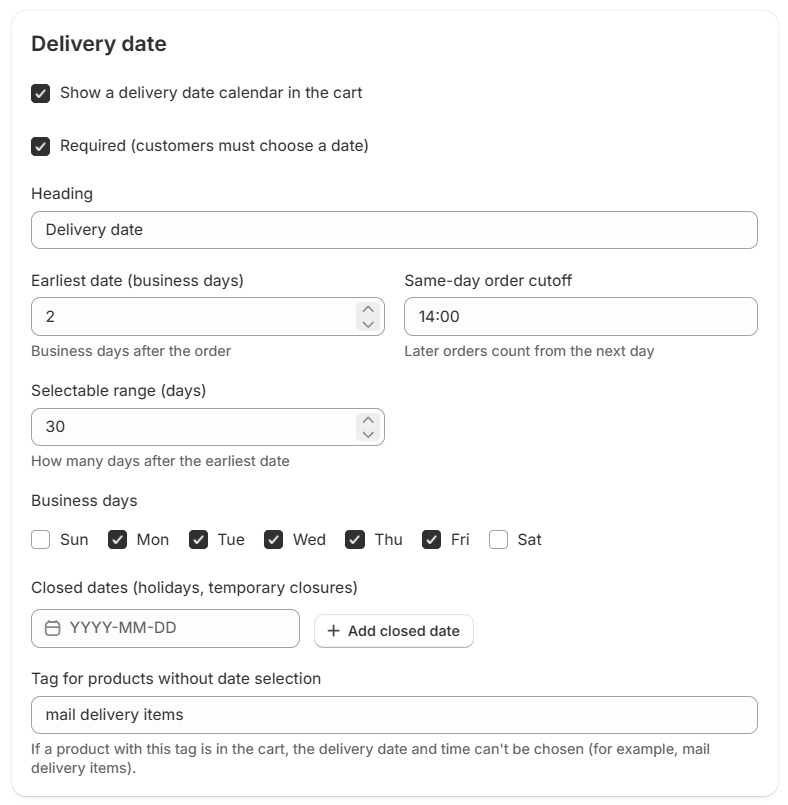
Set it up with Gift Style
- Install and turn on the app — add Gift Style from the Shopify App Store, then switch it on under App embeds in your theme. (Guide)
- Add the block to your cart page — in the theme editor, open the Cart page and add the Gift options block. (Guide)
- Add a preset — press Gift box set and Message card set and the choices drop in, complete with images. Swap in photos of your own wrapping and cards when you are ready. (Guide)
- Pick the products and save — choose which products the options apply to. (Guide)
- Turn on delivery dates (optional) — open Delivery in the app and switch on the date calendar, time slots, where to leave it and gift receipt. (Guide)

See Gift Style on the Shopify App Store
Free to install. Try gift boxes, message cards and delivery dates on the Free plan.