

How to Set Christmas Shipping Cutoffs on ShopifyLet shoppers pick a delivery date that you can meet
In December, the most common question a gift store gets is "will it arrive by Christmas?" Clear cutoffs and a delivery date calendar answer it before anyone has to email you. This guide covers how to plan holiday shipping cutoffs and set them up in your Shopify cart.
Plan your holiday dates first
- Your last ship date for Christmas — work back from your carriers' published holiday deadlines and add your own packing time.
- Days you're closed — Christmas Day, New Year's Day and any break in between.
- When you reopen — so New Year gifts and late "sorry it's late" gifts can still be ordered.
- Products that can't be scheduled — items sent by a method without date selection.
Carriers publish their holiday cutoffs every year, and they differ by service. Check yours, and give yourself a buffer.
Put the rules in the delivery calendar
With Gift Style, you set the rules once and the cart calendar only shows dates you can meet.
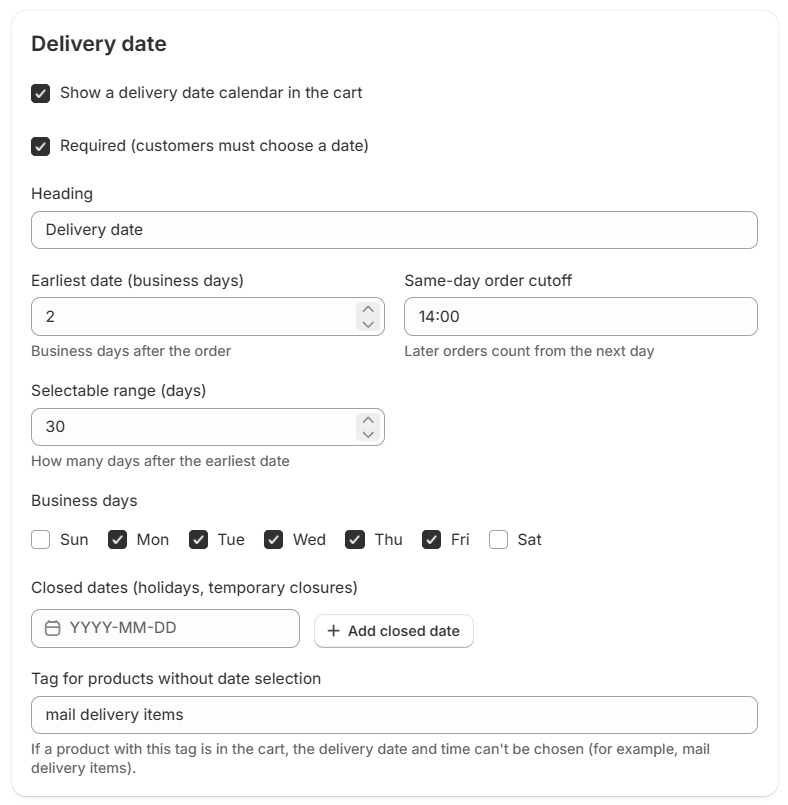
- Earliest date (business days) — how long you need to pack and ship.
- Same-day order cutoff — later orders count from the next day.
- Closed dates — add each holiday closure by date.
- Notice — show a line under the delivery fields, such as "Order by December 18 for Christmas delivery".
- Required — make a date mandatory during the holiday rush if you need it.
What shoppers see
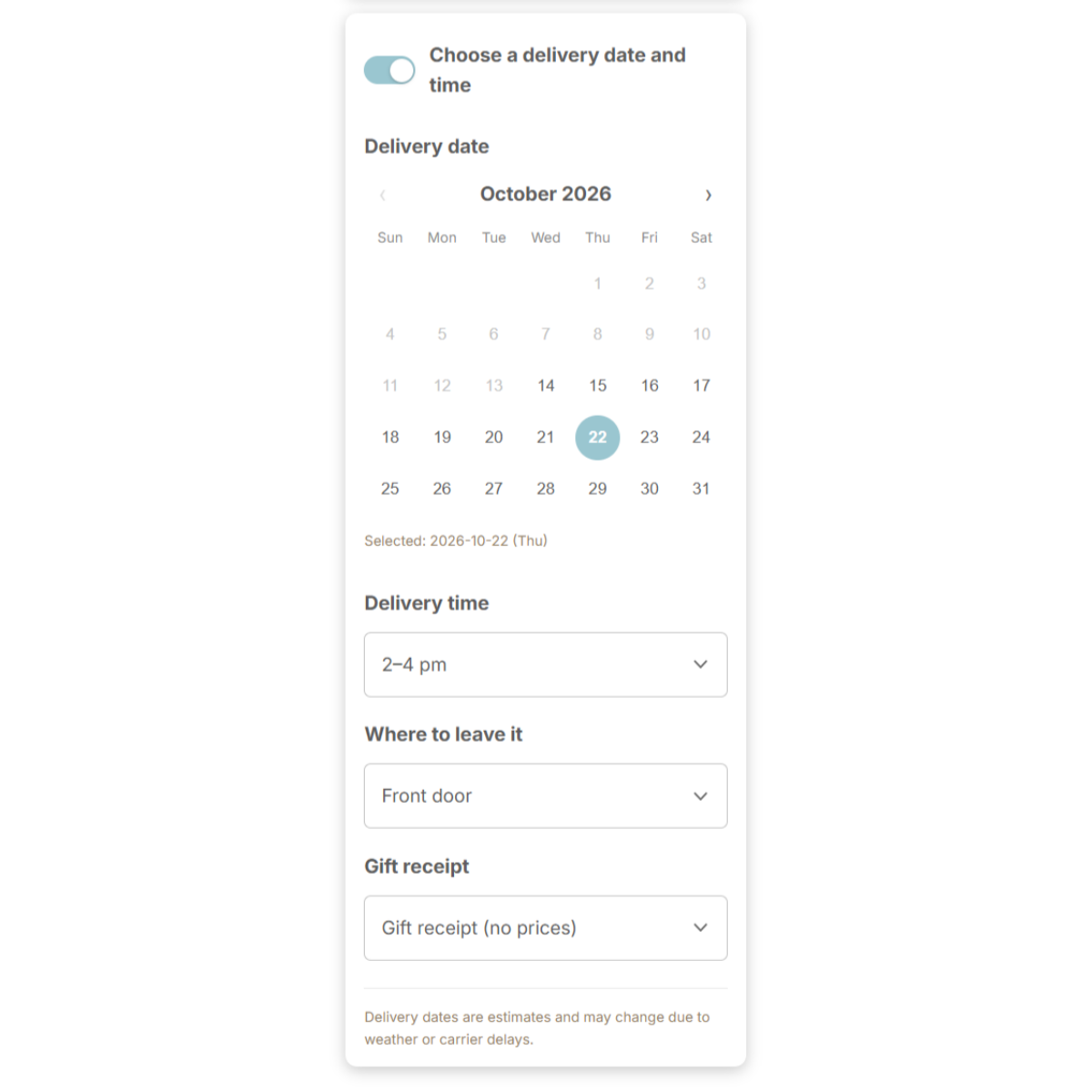
Shoppers pick from valid dates only, plus a time slot and where to leave the package. The choices are saved to the order note, and can appear on the thank-you page so shoppers see exactly what they asked for.
Pack by delivery date
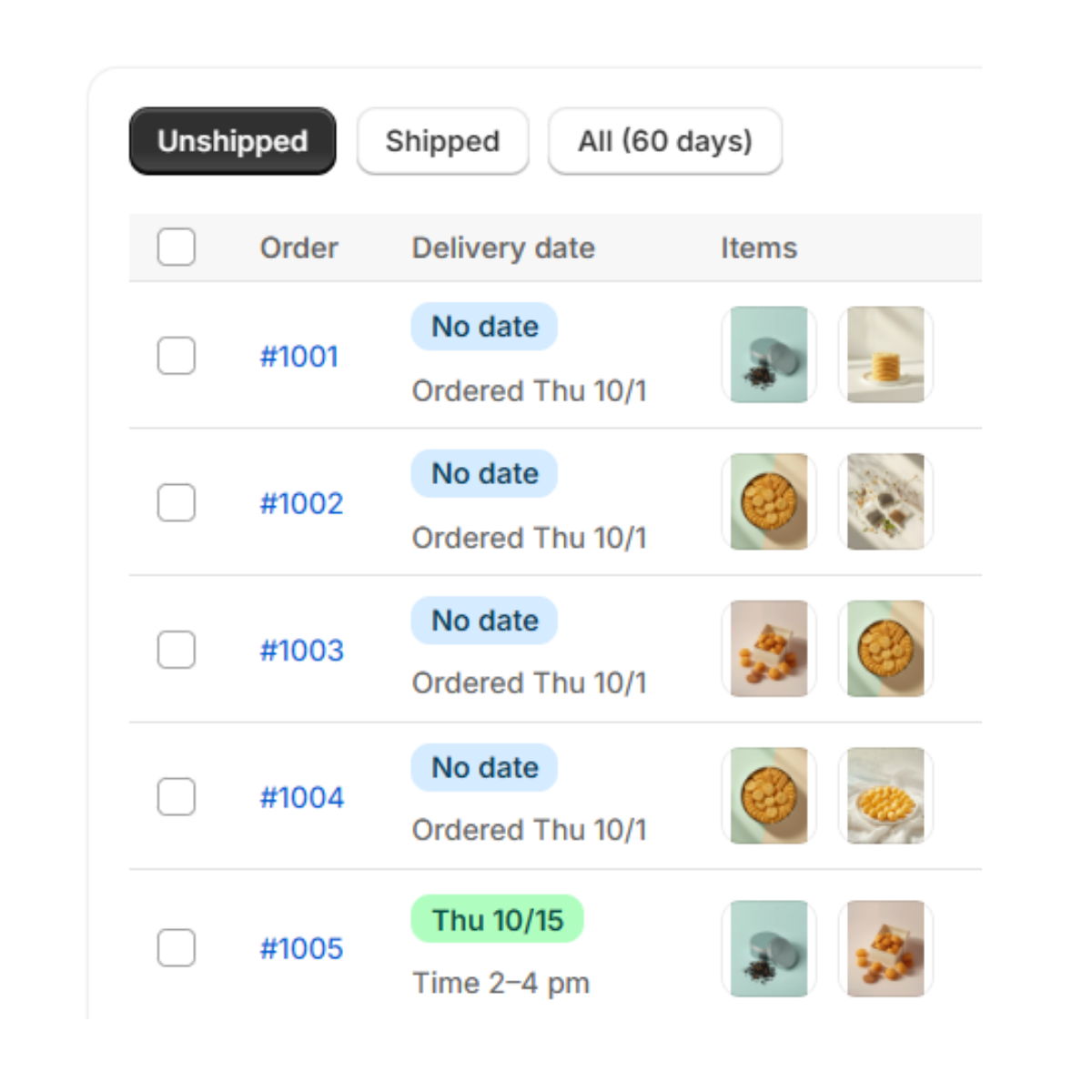
On Pro, the Shipping page lists every gift order by delivery date, with today and overdue dates in red. Tick each item as you pack, or print work sheets for the team.
Set it up with Gift Style
- Install and turn on the app — add Gift Style from the Shopify App Store, then switch it on under App embeds in your theme. (Guide)
- Add the block to your cart page — in the theme editor, open the Cart page and add the Gift options block. (Guide)
- Add a preset — press Wrapping set or Message card set and the choices drop in, complete with images. Swap in photos of your own wrapping and cards when you are ready. (Guide)
- Pick the products and save — choose which products the options apply to. (Guide)
- Turn on delivery dates (optional) — open Delivery in the app and switch on the date calendar, time slots, where to leave it and gift receipt. (Guide)

See Gift Style on the Shopify App Store
Free to install. Delivery dates and closed days are included on every plan.